
iPhone Won’t Charge Past 80? Repair and Maintenance Tips
An iPhone that stops charging at 80% is usually following a battery protection setting or waiting for the phone to cool down. Check Charge Limit and Optimized Battery Charging first. If neither explains it, test the cable, charger, power source, and charging port before considering battery service.
Why Is My iPhone Not Charging Past 80%?
The 80% mark does not automatically mean the battery is damaged. In many cases, iOS is intentionally limiting or delaying charging to reduce battery wear. The message on the Lock Screen or in Settings > Battery often tells you what is happening.
| What you see | Likely cause | First check | Urgency |
| Charging pauses at 80% overnight | Optimized Battery Charging | Lock Screen charging message | Low |
| Battery repeatedly stops near the same percentage | Charge Limit | Settings > Battery > Charging | Low |
| “Charging On Hold” appears | Phone is too hot or cold | Move it to a moderate temperature | Medium |
| Charging cuts in and out | Cable, adapter, outlet, or port issue | Try another known-good setup | Medium |
| Poor runtime, shutdowns, or a service message | Aging or damaged battery | Check Battery Health | High |
Optimized Battery Charging
Optimized Battery Charging learns when you normally leave your iPhone connected for a long time. It may pause at 80% and finish the last part shortly before it expects you to unplug. This reduces the time the battery spends fully charged.
When the feature is active, the Lock Screen normally shows when charging will finish. This is expected behavior, not a repair problem. If you need a full battery sooner, touch and hold the notification, then tap Charge Now.
Charge Limit
On iPhone 15 and later, Charge Limit can stop charging at a level between 80% and 100%. If the limit is set to 80%, the phone is working as configured. It may still charge to 100% occasionally so the battery percentage remains accurate.
To review the setting, open Settings > Battery > Charging. You can select a higher limit, tap Allow Until Tomorrow for a temporary change, or choose Set Limit to 100%.
Charging Accessories and Port
A worn cable, loose connector, weak power adapter, damaged outlet, or debris in the charging port can interrupt charging. These problems do not always stop charging completely; they may cause charging to start and stop or become unusually slow. The same checks are useful when an iPhone says it is charging but it is not.
Use another compatible cable and adapter, then try a different outlet. If another setup works normally, the phone may not need repair.
Temperature Protection
iOS may pause charging when the iPhone is too hot or too cold. You may see a “Charging On Hold” message. Charging should resume after the phone returns to a normal temperature.
Move the phone away from direct sunlight, a hot car dashboard, a heater, or a very cold window. If it feels warm, stop gaming or recording video, lock the screen, and let it cool. Removing a thick case may also help heat escape.
Software and Battery Health
A restart or iOS update can clear a temporary charging problem. Battery age can also matter, especially when the phone has short runtime, shuts down unexpectedly, or shows a battery service recommendation.
Check Settings > Battery for charging messages and usage details. On supported models, open Battery Health or Battery Health & Charging to review maximum capacity and service information.

How Do I Make My iPhone Charge Past 80%?
Start with the option that matches what you see on the phone:
- If Optimized Battery Charging is active, touch and hold its Lock Screen notification and tap Charge Now.
- On iPhone 15 or later, open Settings > Battery > Charging. Raise the Charge Limit, tap Allow Until Tomorrow, or set the limit to 100%.
- On iPhone 14 or earlier, open Settings > Battery > Battery Health & Charging. You can turn off Optimized Battery Charging, although leaving it off may increase battery wear over time.
- If “Charging On Hold” appears, disconnect the charger and move the phone to a cooler or warmer place. Reconnect it after the temperature returns to normal.
- Restart the iPhone and install any available iOS update.
Do not turn off battery protection permanently just because the phone pauses once. A temporary override is usually better when you only need 100% for a trip or a long day.
How Can I Check the Charger, Cable, and Port?
Cable and Adapter Test
Disconnect adapters, hubs, and extension accessories so the iPhone connects directly to the charger. Inspect the cable and adapter for fraying, bent pins, discoloration, or a loose connector. Do not keep using damaged charging equipment.
Power Source Test
Next, test one part at a time: use a different outlet, then a different compatible cable, and finally another charger or power source. A charged power bank can provide an independent power source for this test. Compare the battery percentage before and after 30 minutes with the screen locked.
Charging Port Inspection
Look into the charging port with a light. If you can see lint or debris, do not insert metal tools, apply liquid, or use compressed air. Apple advises removing debris carefully; if it cannot be removed safely, arrange professional cleaning.
When Does an iPhone Need Battery Repair?
Persistent Charging Problems
Consider service when the iPhone still stops charging after you have checked the settings, temperature, cable, charger, outlet, and port. Repair is also more likely to be needed if the phone shuts down unexpectedly, drains very quickly, becomes unusually hot, or displays a battery service message.
Battery Health and Charge Cycles
Maximum Capacity is useful context, but it is not the only sign of battery condition. Apple states that iPhone 14 and earlier batteries are designed to retain 80% of original capacity after 500 complete charge cycles under ideal conditions. For iPhone 15 and later, the figure is 1,000 cycles. Actual results depend on use and charging habits.
Safe Battery Service
Do not attempt to open the phone or replace a swollen or damaged battery without the right training. Lithium-ion batteries can be dangerous when punctured or incorrectly installed. Apple or a qualified repair provider can inspect the device and explain the service options. If the phone will not turn on or charge at all, stop repeated charging attempts and arrange diagnosis.
How Can You Protect iPhone Battery Health?
Charging Optimization
Keep Optimized Battery Charging enabled unless it regularly conflicts with your schedule. On iPhone 15 and later, choose a Charge Limit that gives you enough daily runtime without keeping the battery at 100% for long periods.
Portable Backup Power
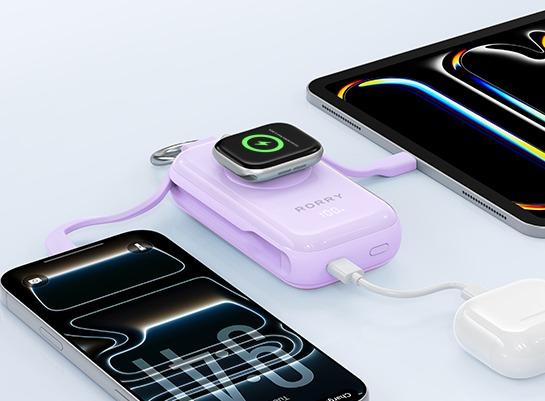
For travel or long days away from an outlet, the RORRY CharmGo D4-10000mAh Portable Charger provides up to 45W wired output, built-in charging options, a battery display, and Apple Watch charging. It cannot repair an iPhone battery, but it provides a practical backup once cable, port, and battery problems have been ruled out.

Temperature Control
Heat is especially important. Avoid charging in direct sunlight, under bedding, or inside a hot vehicle. Heavy gaming, navigation, and video recording can add heat while charging, so pause demanding tasks if the phone becomes warm.
Charger and Port Care
Use compatible, undamaged cables and chargers. Keep the charging port dry and check it when the connector feels loose. You do not need to drain the battery to 0% before every charge, and occasional charging to 100% is normal when you need the extra runtime.
Frequently Asked Questions
Why Isn’t My iPhone’s 80% Charge Limit Working?
An iPhone may occasionally charge to 100% even when the limit is set to 80%. This is normal and helps iOS keep the battery percentage estimate accurate. If the phone regularly ignores the limit, confirm it under Settings > Battery > Charging, restart the iPhone, and install the latest iOS update.
My iPhone Battery Health Is Stuck at 80%. How Can I Fix It?
Battery Health and the current charge level are different. An 80% Maximum Capacity reading estimates how much energy the battery can hold compared with when it was new. A setting cannot restore lost capacity. If the phone also drains quickly, shuts down unexpectedly, or shows a service recommendation, have the battery inspected.
Can I Reset or Recalibrate My iPhone Battery?
iPhone does not include a manual battery-reset feature, and repeatedly draining the battery to 0% will not restore its capacity. If the percentage appears inaccurate, restart the phone, update iOS, and use it normally for several charging cycles. Seek service if the reading remains erratic or the phone shuts down unexpectedly.
How Can I Tell If My iPhone Charging Port Is Damaged?
Possible signs include a connector that feels unusually loose, charging that stops when the cable moves, or failure with several known-good cables and chargers. Visible bent contacts, corrosion, or physical damage also require attention. Do not insert metal tools or liquid into the port; arrange professional inspection instead.
What Is the Typical Lifespan of an iPhone Battery?
There is no fixed number of years because temperature, charging habits, and daily use all affect battery aging. Apple says iPhone 14 and earlier batteries are designed to retain 80% of their original capacity after 500 complete charge cycles under ideal conditions, while iPhone 15 and later batteries are designed for 1,000 cycles. Replace the battery based on its condition and performance, not age alone.