
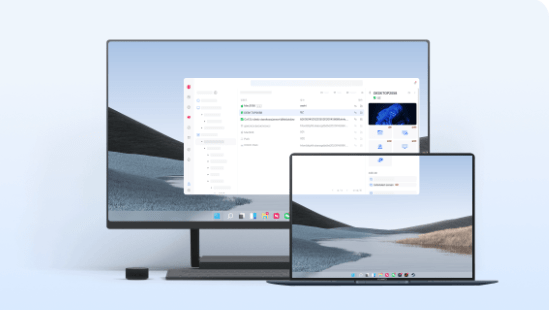
How to Access Files and Apps on Your Work Computer While Traveling
Traveling for work can be exciting, but it can also create an unexpected problem: you arrive at your destination and realize that an important file, desktop application, or piece of information is still sitting on your office computer.
Maybe the presentation you need is saved locally. Perhaps the company uses software that cannot be installed on your travel laptop. Or you simply need to check something on a computer that remains at home or in the office.
In these situations, knowing how to access work computer remotely can make travel much easier. Instead of trying to recreate your entire desktop environment, you can connect to the computer that already has the files and applications you need.
Why Cloud Storage Does Not Always Solve the Problem
Cloud storage is extremely useful for documents that have already been uploaded and synchronized. Services like cloud drives make it easy to open files from different devices.
But cloud storage cannot provide access to everything on a computer.
Consider a situation where you need:
- A file that was saved only on the office computer
- An application installed locally on your work PC
- A database or business program that is not cloud-based
- A specific desktop configuration
- Information stored inside an application rather than as a separate file
In these cases, simply having access to cloud storage may not be enough. Remote desktop access lets you interact with the actual computer rather than only retrieving selected files.
Access Your PC While Traveling
The basic concept is straightforward. A remote access application connects your travel device to another computer over the internet. Once the connection is established, you can interact with the remote computer’s desktop.
This means you can potentially open applications, view documents, retrieve information, and perform tasks as though you were sitting in front of the remote machine.
For example, imagine that you are staying in another city and suddenly need an invoice stored on your office PC. Instead of asking a colleague to find and send it, you can connect to the computer yourself if remote access has already been configured.
This can be especially useful for people who frequently work between offices, travel for meetings, or need occasional access to a home workstation.
Laptop-to-PC Remote Access
A laptop is often the easiest travel device for remote access because it provides a larger screen and a physical keyboard.
Before leaving for a trip, you can configure your office or home computer for remote connections. When you need to work, connect your travel laptop to that computer and use its existing desktop environment.
This approach can be more convenient than moving every application and setting to your travel machine.
It is also useful when the remote computer has better access to company resources or contains specialized software that you do not normally carry with you.
Mobile-to-PC Access Can Be Useful Too
Sometimes you do not have your laptop with you. You may only have a smartphone or tablet.
Mobile-to-PC remote access can provide another way to reach your computer when you need a quick piece of information or a simple task completed.
For example, you might want to:
- Check a document
- Retrieve a small file
- Review information in a desktop application
- Check whether something was completed
- Access a computer when your laptop is unavailable
A phone is not necessarily ideal for long work sessions, but it can be extremely convenient for quick access.
Don’t Forget Remote File Transfer
Being able to control a remote computer is helpful, but sometimes you simply need a file on your travel device.
Remote file transfer can make this process easier. Instead of repeatedly emailing files to yourself or uploading them to a separate service, you can transfer the required document directly between connected devices.
This can be particularly useful when working with files that were never synchronized to cloud storage.
AweSun is one remote access option that supports PC-to-PC and mobile-to-PC connections along with file transfer. Its current feature information describes two-way file transfers between computers and mobile devices, making it suitable for workflows where users need both remote control and direct file access.
Prepare for Unattended Access Before You Travel
One important detail is often overlooked: what happens if nobody is available to approve the connection?
If your work computer remains in an office or home while you travel, you may need unattended access. This allows an authorized user to connect without someone physically sitting at the remote computer to accept the session.
Before traveling, check that the remote computer:
- Is powered on or configured for remote wake-up where supported
- Has a reliable internet connection
- Has the remote-access application installed
- Is configured for unattended connections
- Uses strong authentication
- Has the correct permissions enabled
Do not wait until you are already at the airport or hotel to discover that remote access was never configured.
Test Everything Before Leaving
A five-minute test before traveling can prevent a major inconvenience later.
Connect from the device you plan to take with you and verify that you can actually perform the tasks you expect to need. If possible, test the connection using a different network as well.
For example, your office Wi-Fi may behave differently from a hotel network or mobile connection. Testing in advance gives you an opportunity to fix authentication, permissions, or connection problems while you are still physically near the computer.
Keep Security in Mind
Remote access effectively creates a pathway into your computer, so convenience should always be balanced with security.
Use a strong, unique password and enable additional authentication controls when available. Only allow trusted devices or authorized users to connect.
It is also wise to avoid connecting to sensitive work systems from unknown or unsecured networks unless your organization’s security policies specifically allow it.
AweSun currently describes security features including dual authentication, trusted-device authentication, session alerts, and suspicious-access blocking. These features are designed to provide additional control when accessing remote devices.
For company-owned computers, always follow your organization’s IT and security policies before enabling remote access.
A Simple Pre-Travel Remote Access Checklist
| Check before traveling | Why it matters |
| Install the remote access software | Ensures the host computer is ready |
| Configure unattended access if needed | Allows connections when nobody is in the office |
| Test from your travel device | Confirms the connection actually works |
| Test file transfer | Makes retrieving documents easier |
| Check mobile access | Provides a backup option when your laptop is unavailable |
| Verify authentication | Helps protect the remote computer |
| Confirm the computer stays powered and connected | Prevents avoidable connection failures |
Using Remote Access With AweSun
For travelers who need to connect to a home or work computer from another device, AweSun remote access is one option to consider.
Its current feature set covers remote PC access, mobile-to-PC connections, file transfer, unattended access, and remote support workflows. It is available as a free-to-start solution, with paid options for users who need additional capabilities.
The important point is that remote access should complement your existing workflow rather than replace every other tool. Cloud storage remains useful for synchronized documents, while remote desktop access becomes valuable when you need the complete environment of another computer.
Work From Anywhere Without Rebuilding Your Setup
Travel does not have to mean leaving your digital workspace behind. When remote access is configured properly, your home or office computer can remain a useful resource even when you are hundreds of miles away.
The key is preparation. Set up the connection before traveling, test it from your intended device, configure file transfer if required, and make sure appropriate security controls are enabled.
Whether you need a single file, a specialized desktop application, or access to your complete work environment, remote connectivity can provide a practical way to access computer from anywhere without moving your entire setup to a travel device.