
Competitor Monitoring Dashboard: The One-Screen Intel Stack
Most teams agree that rivals matter. Yet they only check on them when something goes wrong.
By then, the launch, price change, or new campaign is already weeks old. And a typical “check” means ten open browser tabs. One shows an ad library. Another shows a pricing page. A third is a review site. Someone uses a tool like Iganony to privately view a rival’s public Instagram Stories and see this week’s offers. Each look is useful on its own. None of them adds up to a trend, and none of them is saved for next month.
A competitor monitoring dashboard fixes that. It turns scattered looks into one screen you can read in two minutes, with history behind every number. Below, you will learn the four layers of a simple intelligence stack, the six tiles worth building, the free data sources behind each one, alert rules that catch changes early, and a step-by-step build you can finish in an afternoon.
Key Takeaways
- A useful dashboard answers fixed questions, not every question.
- Six tiles is about the most anyone can scan in two minutes.
- Public ad libraries are the best free source of rival intent.
- Index each rival to 100 so different sizes compare fairly.
- Alerts matter more than charts, because nobody checks daily.
- Use public data only, and never share logins with outside tools.
What a One-Screen Dashboard Must Answer
A competitor monitoring dashboard without fixed questions turns into a data dump. Before you collect anything, agree on what the screen must tell you.
The Five Questions
- What are rivals saying? Their ads, posts and new pages.
- What are they charging? Prices, plans, discounts and offers.
- How do people feel about them? Sentiment, reviews and complaints.
- Where are they investing? New hires, new markets and new channels.
- What changed this week? The few movements that need a response.
Every tile on your competitor monitoring dashboard should answer one of these. If a chart does not, cut it.
Why One Screen, Not Ten Reports
Long reports get skimmed once and forgotten. A single screen gets opened on a Monday morning with coffee. That habit is the whole point.
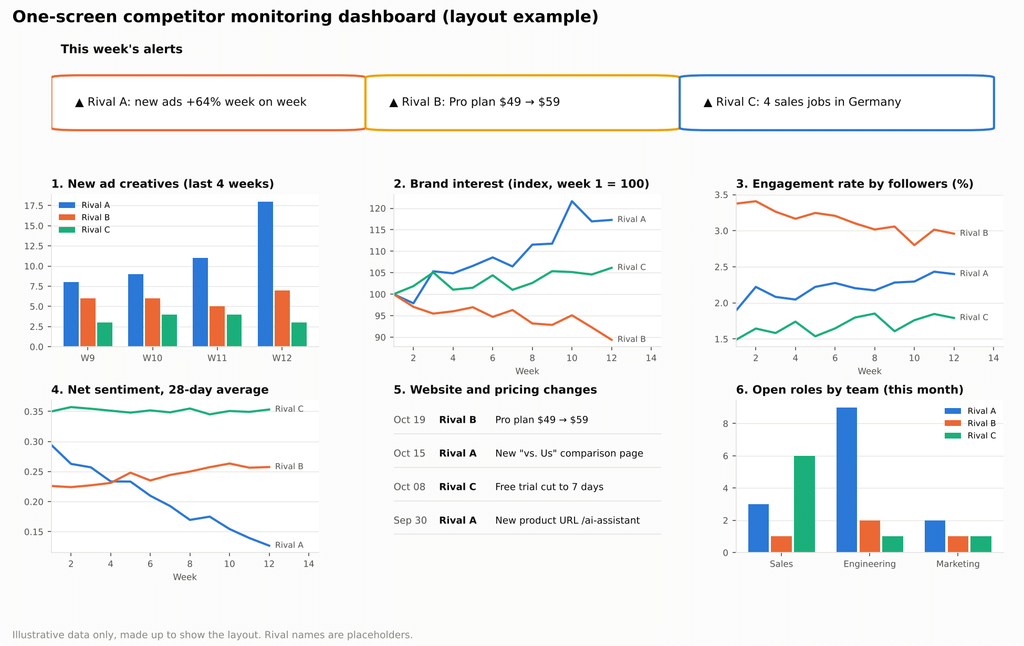
Limit your competitor monitoring dashboard to six tiles plus an alert strip. More than that, and people start scrolling. Once they scroll, they stop reading.
The Four Layers of the Intelligence Stack
Every working competitive intelligence dashboard has the same four layers. Keep each one simple, and the whole stack stays easy to maintain.
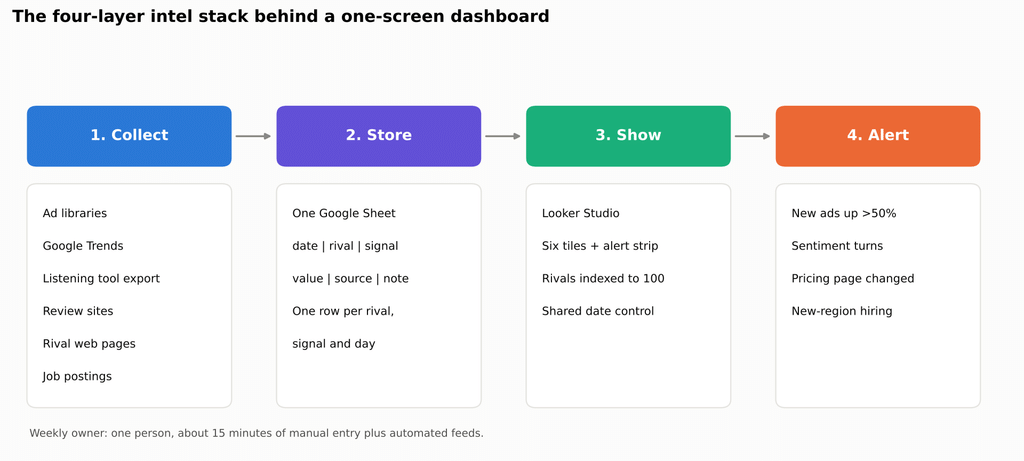
Diagram of the four-layer competitor intelligence stack, showing data sources flowing into a Google Sheet, then a Looker Studio dashboard, then alert rules that notify the team
Layer 1: Collect
This is where data comes from: ad libraries, Google Trends, listening tools, review sites, rival websites, and job boards. Some sources feed in automatically. Others need 15 minutes of manual entry each week. Both are fine.
Layer 2: Store
Use one Google Sheet as your single source of truth. Give it one tidy table with the same six columns for every signal:
| date | rival | signal | value | source | note |
|---|---|---|---|---|---|
| 2026-10-19 | Rival A | active_meta_ads | 42 | Meta Ad Library | New spring creative set |
Each row holds one rival, one signal, and one day. This “long” format looks plain, but it makes filtering, charting, and adding new rivals easy. Wide tables with a column per rival break the moment you add a fourth competitor.
Layer 3: Show
Connect the sheet to a Looker Studio dashboard. Looker Studio is free to use with Google sources such as Sheets. The paid Pro tier adds team workspaces and admin controls and is listed at about $9 per user per month. Most small teams never need it.
Layer 4: Alert
Charts on a competitor monitoring dashboard only help when someone looks at them. Alerts reach people who do not. Set a few simple rules, covered later in this guide, that send an email or a chat message when a line moves sharply.
The Six Tiles of a Competitor Monitoring Dashboard
Each tile answers one question and draws on one main data source. Here is what each one shows, where the data comes from, and what to watch for.
Tile 1: Ad Activity
Question it answers: What are rivals saying, and how hard are they pushing?
Public ad libraries are the best free source of competitor intent. Ads cost money, so a rise in new ads tells you where a rival is putting real budget.
- Meta Ad Library shows ads currently running across Facebook, Instagram and other Meta apps. Ads about politics and social issues stay visible for years.
- The Google Ads Transparency Center shows ads from verified advertisers across Search, YouTube, and display, with filters for region and format.
- LinkedIn’s Ad Library shows ads run on LinkedIn over roughly the past year. It is useful for B2B rivals.
- TikTok’s Ad Library shows detailed data mainly for ads run in Europe. For other regions, TikTok’s Creative Center shows top-performing ads but not a full record.
What to log each week: the number of active ads and the number of new creatives per rival, per platform.
What to watch for: a sudden jump in new creatives. It often comes one to three weeks before a launch or seasonal push. This simple count is the heart of good competitor ad tracking.
Tile 2: Demand and Brand Interest
Question it answers: Is interest in each rival growing or shrinking?
Google Trends shows relative interest in brand names over time. The classic web tool has one big flaw for dashboards. Every chart is rescaled from 0 to 100 on its own, so numbers from two separate pulls do not match.
The new Google Trends API is designed to fix that. Google describes it as offering a rolling five-year window with consistently scaled data, so results can be joined across requests. It is still in alpha, and access requires an early-access application. If you cannot get access yet, compare all rivals in a single web-tool pull each month, and always include your own brand as an anchor.
What to watch for: A rival’s interest line pulling away from the pack, or a sharp rise after a campaign.
Tile 3: Social Engagement and Activity
Question it answers: Is a rival’s audience leaning in or drifting away?
Log each rival’s engagement rate by followers each week. That means total interactions divided by followers, so a large and a small rival can be compared fairly. Benchmarking tools can export this, or you can calculate it from public posts.
For Instagram-heavy rivals, you can add activity signals. Tools like Dolphin Radar, a web-based Instagram analytics tool that monitors publicly available account activity, can show follower spikes and which accounts a rival has started following. A cluster of new followers for creators in one niche often precedes an influencer campaign. Treat these as early hints, check how any third-party tool collects its data, and read its terms before you rely on it.
What to watch for: engagement rising while follower growth stays flat. That usually means content is landing well, not just that ads are buying reach.
Tile 4: Sentiment and Share of Voice
Question it answers: How do people feel about each rival, and who owns the conversation?
Export two numbers from your listening tool each week:
- Net sentiment on a 28-day rolling average. Daily scores swing too much to be useful.
- Share of voice. One brand’s mentions divided by all mentions of the brands you track.
What to watch for: a rival whose share of voice rises while sentiment falls. They are louder, but people are not happier. That is often a sign of a problem you can position against.
Tile 5: Website and Pricing Changes
Question it answers: What are rivals charging, and what are they changing on their sites?
Rival websites change quietly. A page change monitor can check key pages, such as pricing, plans, features, and comparison pages, and alert you when the text changes. For history, the Wayback Machine often holds older versions of the same pages.
What to log: the date of each change and a one-line note on what changed, such as “Pro plan up from $49 to $59” or “new page comparing them to us.”
What to watch for: new comparison pages, removed free plans, new product URLs and changes to refund or trial terms.
Tile 6: Investment Signals
Question it answers: Where is each rival putting money next?
Two public signals work well here:
- Job postings by team. Five new sales roles in a new region usually mean expansion there. A wave of engineering roles for one product hints at a bigger launch.
- Review volume and rating. A rising number of reviews shows growth. A falling average rating shows strain.
What to watch for: hiring in a market or product area where you are also active.
Mockup of a one-screen competitor monitoring dashboard with an alert strip and six tiles for ad activity, brand interest, engagement, sentiment and share of voice, website changes and hiring signals, using illustrative data
The mockup above shows how the six tiles fit on one screen. The numbers are illustrative, made up to show the layout rather than taken from real brands.
Building It Step by Step in Looker Studio
A basic version of this competitor monitoring dashboard takes an afternoon to build. You can improve it over time.
Step 1: Set Up the Data Sheet
Create one Google Sheet to feed your competitor monitoring dashboard, using the six-column table from Layer 2. Use the same date format everywhere (e.g., 2026-10-19) and the same rival names in every row. Small spelling differences, such as “Rival A” and “RivalA,” split one rival into two on your charts.
Step 2: Automate the Free Feeds
- Google Alerts. Set an alert for each rival’s brand name. Where the delivery option is available, choose RSS and pull the feed into your sheet with the IMPORTFEED function in Google Sheets.
- Manual entry. Ad counts, job postings, and review numbers take about 15 minutes a week to log by hand. Pick one person and one day.
Step 3: Index Each Rival to 100
Raw numbers make big rivals look dominant on every chart of a competitor monitoring dashboard. Index instead. Divide each week’s value by your first week’s value, then multiply by 100. Every rival now starts at 100, and the chart shows who is growing fastest, not just who is biggest.
Step 4: Lay Out the Tiles
Use a fixed layout:
- Top row: an alert strip with this week’s changes.
- Middle rows: the six tiles, two or three across.
- Bottom: a small table of raw notes for anyone who wants detail.
Give every tile the same date-range control, so that changing the period updates the whole screen at once.
Step 5: Add Alert Rules
Start with three or four rules. Too many alerts get ignored.
- New ads for a rival rise more than 50% week on week.
- A rival’s 28-day sentiment line changes direction.
- A rival’s pricing page changes.
- A rival posts three or more jobs in a new region.
You can send these through Looker Studio’s scheduled delivery on the Pro tier, or with a simple Google Sheets formula that flags rows plus a weekly email.
Practical Limits to Know
If you upload CSV files to Looker Studio instead of using a sheet, know the limits. Google’s release notes list a 100 MB maximum per dataset and 100 uploads per dataset each day. New files are added to the end of the dataset, and duplicate rows are not removed for you. Always include a date column, and remove duplicates before each upload. Otherwise, a re-uploaded week can quietly double your numbers.
Free vs. Paid: What Each Tier Gets You
You do not need a big budget to start. The table below shows what each level of investment adds to a competitive intelligence dashboard.
| Tier | What it includes | Best for |
|---|---|---|
| Free | Ad libraries, Google Trends, Google Alerts, Sheets, Looker Studio, Wayback Machine | Startups and small teams |
| Mid | Free tier plus a listening tool and an engagement benchmarking tool | Growing marketing teams |
| Full | Mid tier plus paid data connectors, page change monitoring and an Instagram activity tool | Agencies and larger brands |
Start free. Add a paid tool only when you can name the tile it will improve.
Keep It Legal and Ethical
Running a competitor monitoring dashboard is normal business practice when you stay within clear lines.
- Use public data only. Ad libraries, public posts, public pages, and job listings are fair to observe.
- Respect platform terms. Many platforms restrict automated data collection. Check how each tool gathers data before you use it.
- Protect your logins. Never enter your own social media password into an outside viewer or tracker.
- Track companies, not people. Do not build profiles of individual employees.
These rules protect you as much as anyone else. A dashboard built on scraped private data is a legal risk you do not need.
Reading the Dashboard in Five Minutes a Week
A fixed reading order keeps the habit quick:
- Alert strip. What fired this week?
- Ad activity. Who is spending more?
- Sentiment and share of voice. Who is gaining trust, and who is losing it?
- Website changes. Any new prices, pages, or offers?
- Investment signals. Any new hiring patterns?
Then write three lines for your team: what changed, the likely reason, and one possible response. Over time, those notes become the most valuable part of your competitor monitoring dashboard because they record what your team actually learned.
From the Analyst’s Desk: Patterns Worth Knowing
The same patterns show up across many industries.
- Ad counts lead; everything else follows. New creatives are usually the first visible sign of a push.
- Small text edits matter. One changed line on a trial or refund page can signal a bigger strategy shift.
- Comparison pages are a signal of pressure. A rival rarely builds a page about you unless you are winning deals.
- Dashboards die from bad data, not bad design. One owner and one weekly routine keep the numbers trustworthy.
Frequently Asked Questions
What should a competitor monitoring dashboard include?
At minimum, include ad activity, brand interest, social engagement, sentiment and share of voice, website and pricing changes, and investment signals such as hiring. Add an alert strip at the top.
Can you build a competitor dashboard for free?
Yes. Public ad libraries, Google Trends, Google Alerts, Google Sheets, and Looker Studio are all free. You will spend about 15 minutes a week on manual entry.
How often should a competitor dashboard update?
Weekly works for most teams. Set alerts for sudden changes so you do not need to check daily.
Is it legal to track competitor ads and pricing?
Viewing public ads, public prices, and public pages is common and generally lawful. Check each platform’s terms on automated data collection, and avoid private or personal data.
What is the Google Trends API, and can anyone use it?
It is Google’s official API for Trends data, offering a five-year window and consistently scaled results. It is in alpha, and access currently requires an early-access application.
How many competitors should one dashboard track?
Three to five is a good range. More than that crowds the charts and makes patterns harder to see.