AZERTY Keyboard Explained: Layout, Shortcuts, and Switching Tips
If your keyboard starts with A-Z-E-R-T-Y instead of Q-W-E-R-T-Y, you’re using an AZERTY layout. Used throughout France and Belgium, AZERTY was designed specifically for French language input — different key positions, dedicated accent keys, and punctuation arranged around French typing habits. Whether you’ve just picked up an AZERTY keyboard or want to switch between layouts efficiently, this guide covers what you need to know.
What Is the AZERTY Keyboard?
The AZERTY keyboard is a keyboard layout designed for the French language. Its name comes from the first six letters on the top row: A, Z, E, R, T, Y — compared to Q, W, E, R, T, Y on a standard QWERTY keyboard.
The layout was developed in the early 20th century to accommodate French writing conventions. French uses a range of accented characters — é, è, à, ù, ç — that appear regularly in everyday text. Rather than relying on key combinations or special menus, AZERTY gives these characters dedicated positions on the keyboard, making French input faster and more natural. Most mechanical keyboards ship in QWERTY by default, but AZERTY variants are widely available for French-speaking markets.
Which Countries Use AZERTY?
AZERTY is the standard keyboard layout in France and Belgium. It’s also used in Luxembourg and parts of French-speaking Africa, and by French speakers in other countries who prefer it for daily typing.
Note that the French (France) and Belgian AZERTY layouts are not identical — there are small differences in the placement of certain symbols and accented characters.
How AZERTY Differs from QWERTY
The layouts look similar at a glance but differ meaningfully once you start typing.
Letter Position Changes
Three key letter changes distinguish AZERTY from QWERTY:
- A and Q are swapped — A moves to where Q sits on QWERTY, and vice versa
- Z and W are swapped — Z takes W’s position, W moves to Z’s spot
- M shifts to the right of L — on QWERTY, M sits between N and the comma key; on AZERTY, it moves one position to the right
On standard French AZERTY, the number row also behaves differently: numbers require the Shift key to type, while the unshifted positions produce symbols and accented characters instead.
Understanding how layout affects overall keyboard size and layout decisions helps when choosing between AZERTY options — a 65% AZERTY keyboard and a full-size AZERTY keyboard have different trade-offs in key access.
Accented Characters and Special Keys
The defining feature of AZERTY is its treatment of French diacritics. On QWERTY, typing é or à typically requires multi-key combinations or special input methods. On AZERTY, these characters appear directly on the keyboard:
- é — dedicated key (typically above the number 2 position)
- è — dedicated key
- à — dedicated key
- ù — dedicated key
- ç — dedicated key
This makes French typing significantly faster — accented characters account for a substantial portion of written French, and hitting a single key rather than a combination per character adds up over time.
AZERTY vs QWERTY at a Glance
| Feature | QWERTY | AZERTY |
| Top row letters | Q W E R T Y | A Z E R T Y |
| Primary language | English | French |
| Key swaps | — | A↔Q, Z↔W, M shifted right |
| Number keys (unshifted) | Numbers | Symbols / accented characters |
| Accented characters | Requires key combinations | Dedicated keys |
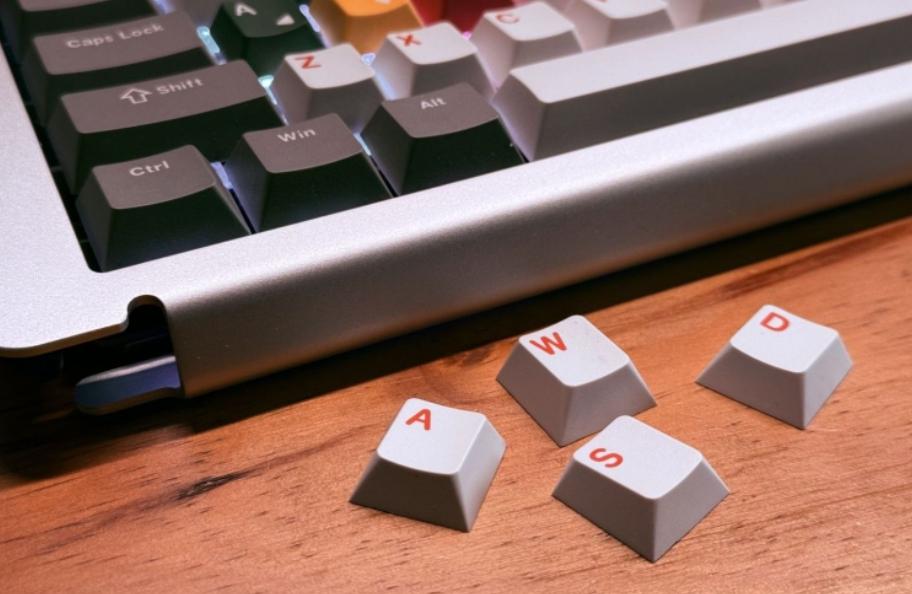
| Gaming movement (default) | W A S D | Z Q S D |
| Main regions | Global | France, Belgium, Luxembourg |
How to Switch Between AZERTY and QWERTY
Most operating systems let you add and toggle keyboard layouts without any hardware changes. This is useful if you work in both English and French, or if you’re using a QWERTY keyboard but need to type in French temporarily.
On Windows
- Open Settings → Time & Language → Language & Region
- Under Preferred languages, find French (France) or add it if it’s not listed
- Click Options → Add a keyboard
- Select French AZERTY from the list
- Press Win + Space to switch between installed layouts at any time
The current layout name appears briefly on screen when you toggle. You can also click the language indicator in the taskbar to select a layout manually.
On macOS
- Go to System Settings → Keyboard → Input Sources
- Click the + button to add a new layout
- Select French from the language list, then choose AZERTY
- Check the Show input menu in the menu bar to display the active layout
- Press Control + Space to cycle through installed layouts
Tips for Mastering the AZERTY Layout
Switching to AZERTY from QWERTY — or learning it from scratch — takes deliberate practice. These tips make the transition more efficient.
Start with short, simple text. Don’t begin with a complex document. Type short messages, lists, or notes first. The goal is to build muscle memory on the most common key positions before adding complexity.
Focus on the swapped letters first. The A/Q and Z/W swaps cause the most errors early on. Drill these specifically — type pairs like “quiz,” “quartz,” “wax,” and “zone” repeatedly until the correct keys become automatic.
Learn the accent key positions by character. Rather than memorising the full layout at once, learn each accented character as you need it. Start with é, then à, then è. Each one you automate removes a point of friction from everyday French typing.
Remap WASD in games. On AZERTY, the standard WASD movement becomes ZQSD. Most games allow custom keybinding in the settings menu. Remapping this before you start playing saves significant frustration. Some competitive players keep a QWERTY keyboard for gaming and AZERTY for typing.
Use a hot-swap keyboard for dual-layout setups. If you need to run AZERTY and QWERTY regularly — for work in French and gaming in English, for example — a hot-swap keyboard makes the switch cleaner. The AM RGB 65 supports full QMK/VIA remapping, so you can configure the layout in software without touching the hardware.
Use a physical keyboard with AZERTY labels. When learning, having the correct key labels visible removes the guesswork and speeds up the early phase. Hot-swap keyboards from the keyboard collection let you swap keycap sets — switching to an AZERTY keycap set on the same board is one of the more practical ways to set up a dual-layout workflow.
Give it two weeks. Muscle memory for a new layout typically stabilises within ten to fourteen days of regular use. Your typing speed will drop initially and recover — often to above your previous baseline, since AZERTY is more efficient for French text.
Conclusion
AZERTY is not a harder or worse layout than QWERTY — it’s a layout optimised for a different language. For French speakers, the dedicated accent keys and French-frequency letter placement make everyday typing noticeably more efficient. For QWERTY users learning AZERTY, the transition requires focused practice on the swapped letters and a few weeks of adjusted muscle memory. Most modern operating systems handle layout switching in a few clicks, so running both layouts on the same machine is straightforward.
FAQ
Is AZERTY harder to learn than QWERTY?
Not inherently. For native French speakers, AZERTY is often easier because it’s optimised for French writing patterns. For QWERTY users switching to AZERTY, the main challenge is the A/Q and Z/W swaps, which typically take one to two weeks to internalise.
Can I use an AZERTY layout on a QWERTY keyboard?
Yes. Operating systems manage layout software independently of physical key labels. You can set your OS to AZERTY while using a QWERTY keyboard — though the physical labels won’t match, which makes the learning process harder.
Why do number keys work differently on AZERTY?
On standard French AZERTY, the number row’s unshifted positions produce symbols and accented characters rather than numbers. Numbers require the Shift key. This was designed to prioritise the characters that appear most frequently in French text.
Does AZERTY affect gaming performance?
It changes default control positions. WASD movement becomes ZQSD on AZERTY, and most games default to QWERTY bindings. Remapping controls in the game settings resolves this. Many French gamers use AZERTY for everyday use and remap game controls as standard practice.
Is Belgian AZERTY the same as French AZERTY?
No. Belgium uses a variant with some differences in symbol placement. If you’re buying a physical AZERTY keyboard for Belgium-based use, verify that it uses the Belgian variant rather than the French standard.